Add a Watermark to a PDF to Protect Your Work
Brand your documents or mark drafts with text or image watermarks.
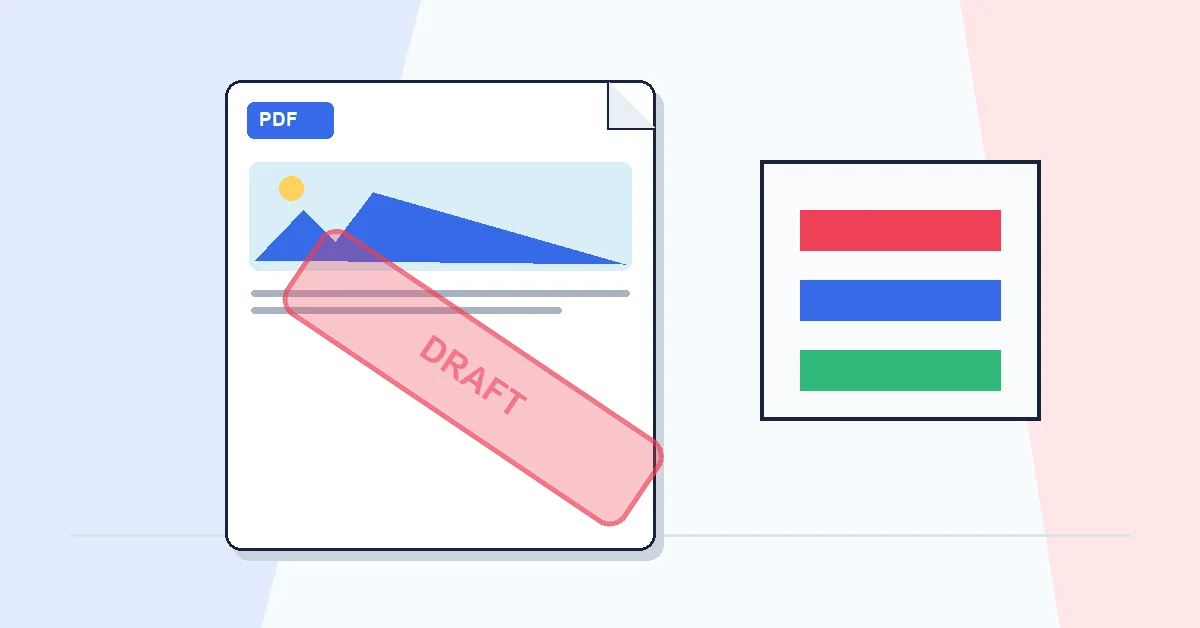
Two reasons to watermark: ownership and status. A company logo says where the file came from. A DRAFT or CONFIDENTIAL label says how to treat it. Both reduce confusion when multiple versions circulate.
Add Watermark stamps text or an image on every page in your browser. Upload, enter your label or pick a logo, set position, opacity, and rotation, then apply and download.
Opacity is the setting people get wrong most often. Too high and the stamp fights the content. Too low and it disappears in print. Aim for visible but not dominant — roughly thirty to forty percent opacity is a good starting point for text watermarks.
Tiled watermarks cover more surface area, which helps if you worry about screenshots. Text is faster to set up; images work better for brand marks. The watermark is embedded in the export, not a removable comment.
A practical workflow for Add Watermark
This workflow starts with a PDF that needs a text or image mark and produces a watermarked PDF. The setting that deserves the most attention is simple: choose watermark text or image, opacity, size, rotation, and placement.
- 1.Add a PDF that needs a text or image mark.
- 2.Choose watermark text or image, opacity, size, rotation, and placement.
- 3.Click Add Watermark and let RashPDF prepare a watermarked PDF.
What to check before you download
- Input
- a PDF that needs a text or image mark
- Expected output
- a watermarked PDF
- Important setting
- choose watermark text or image, opacity, size, rotation, and placement
- Quality check
- Use medium opacity so the watermark is visible without covering important text. The watermark is added over the PDF pages while existing content remains visible.
- Processing note
- Add Watermark performs this document task in your browser and creates a watermarked PDF on your device.
After the result is checked, you can protect the watermarked PDF, compress it, or share it by link. Keep the original file until the final version has opened correctly and is ready to print, submit, archive, or share.