Rotate PDF Pages and Fix Sideways Scans
Turn pages right side up so they print and read correctly every time.
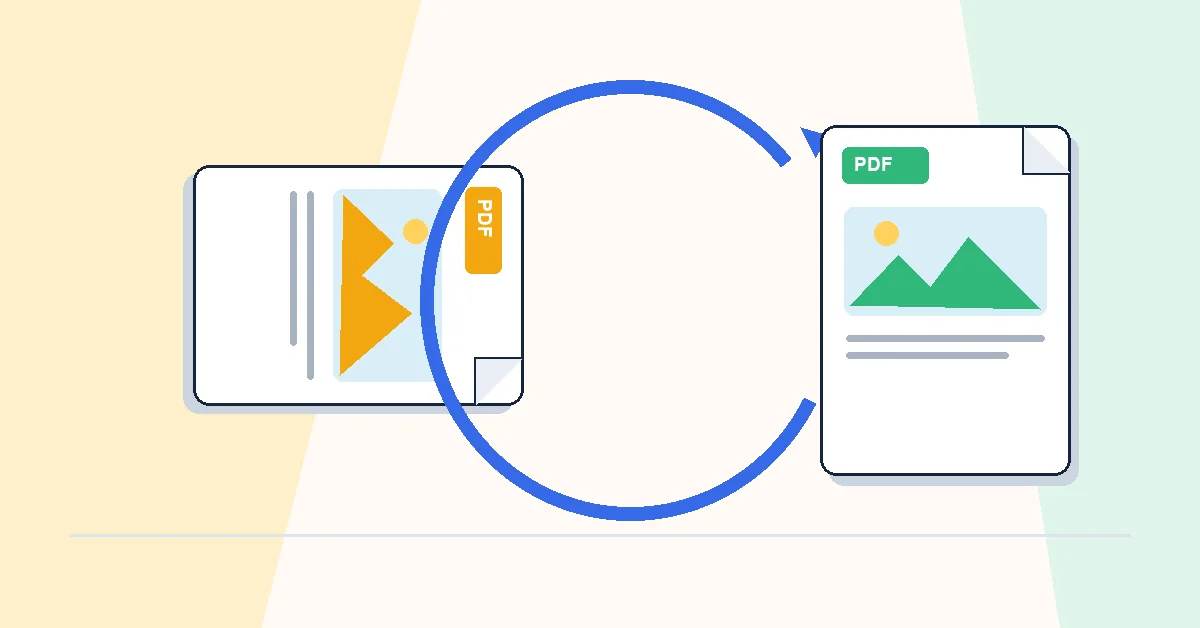
You scan ten pages and nine come out upright. One is sideways because the paper loaded differently. Opening the file on a phone makes that one page unusable without zooming and tilting your head.
Rotate PDF fixes orientation in seconds. Upload, click the rotate control on any thumbnail — ninety degrees per click — or use Rotate All for the whole document. Download when done.
Rotation changes page orientation without intentionally rebuilding the visible page content. Open the downloaded file and check text, images, and links before replacing your source copy.
Rotate before OCR PDF on scanned files. Recognition engines read upright text far more accurately than sideways pages. Also rotate before Organize PDF if you're cleaning up a mixed scan batch.
A practical workflow for Rotate PDF
This workflow starts with a PDF with sideways or upside-down pages and produces a PDF with corrected page orientation. The setting that deserves the most attention is simple: rotate all pages or select individual pages to turn.
- 1.Add a PDF with sideways or upside-down pages.
- 2.Rotate all pages or select individual pages to turn.
- 3.Click Rotate PDF and let RashPDF prepare a PDF with corrected page orientation.
What to check before you download
- Input
- a PDF with sideways or upside-down pages
- Expected output
- a PDF with corrected page orientation
- Important setting
- rotate all pages or select individual pages to turn
- Quality check
- Preview each page orientation before saving when the document mixes portrait and landscape pages. Rotation changes the page view, not the content quality.
- Processing note
- Rotate PDF performs this document task in your browser and creates a PDF with corrected page orientation on your device.
After the result is checked, you can organize pages, add numbers, or compress the corrected file. Keep the original file until the final version has opened correctly and is ready to print, submit, archive, or share.