Convert a PDF Into an Editable PowerPoint
Reuse PDF pages in slides and update text, layouts, or visuals for a presentation.
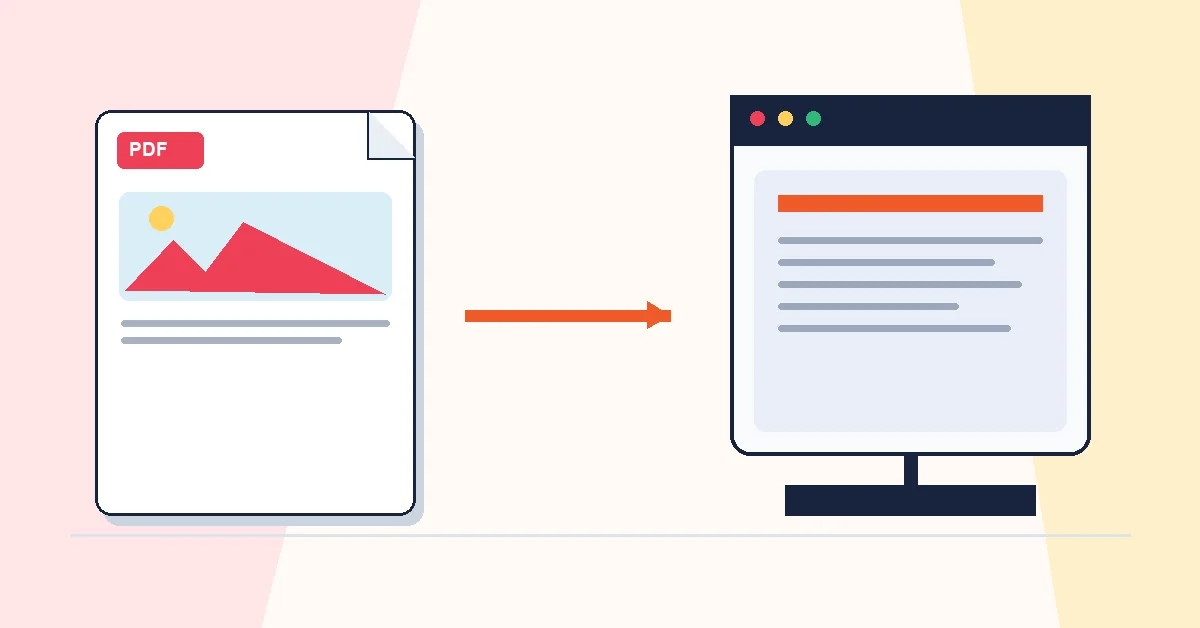
A client sends slides as PDF and asks for three updates before Friday's meeting. Rebuilding the deck from scratch isn't an option. Converting to PowerPoint gives you an editable starting point — not a pixel-perfect clone.
PDF to PowerPoint maps pages to slides on our server. Upload, download PPTX, then fix font substitutions, spacing, and any elements that did not transfer cleanly in PowerPoint or Google Slides.
PDFs that were originally exported from PowerPoint convert best. Arbitrary report layouts may need more manual work. Treat the output as a draft deck, not a finished presentation.
If you only need to display slides without editing, PDF to JPG may be simpler. When the deck is ready, export with PowerPoint to PDF so layout stays locked for the audience.
A practical workflow for PDF to PowerPoint
This workflow starts with a PDF presentation or slide-style document and produces an editable PPTX file. The setting that deserves the most attention is simple: upload the PDF and convert each page into a slide.
- 1.Add a PDF presentation or slide-style document.
- 2.Upload the PDF and convert each page into a slide.
- 3.Click Convert to PowerPoint and let RashPDF prepare an editable PPTX file.
What to check before you download
- Input
- a PDF presentation or slide-style document
- Expected output
- an editable PPTX file
- Important setting
- upload the PDF and convert each page into a slide
- Quality check
- Use PDFs that came from slides when possible, because page-to-slide layout is more predictable. Each PDF page becomes a slide; editability and layout accuracy depend on how the PDF was created.
- Processing note
- PDF to PowerPoint sends a PDF presentation or slide-style document to the RashPDF conversion service because this task needs server-side processing. The service returns an editable PPTX file to your browser.
After the result is checked, you can export the updated deck back to PDF or merge the PDF with handouts. Keep the original file until the final version has opened correctly and is ready to print, submit, archive, or share.