Edit PDF Text, Images, and Annotations in the Browser
Add text, drawings, and shapes to a PDF without installing any software.
You receive a PDF form with blank lines but no fillable fields. The old workflow is print, write by hand, scan, and hope the scan is readable. That takes fifteen minutes and still looks rough.
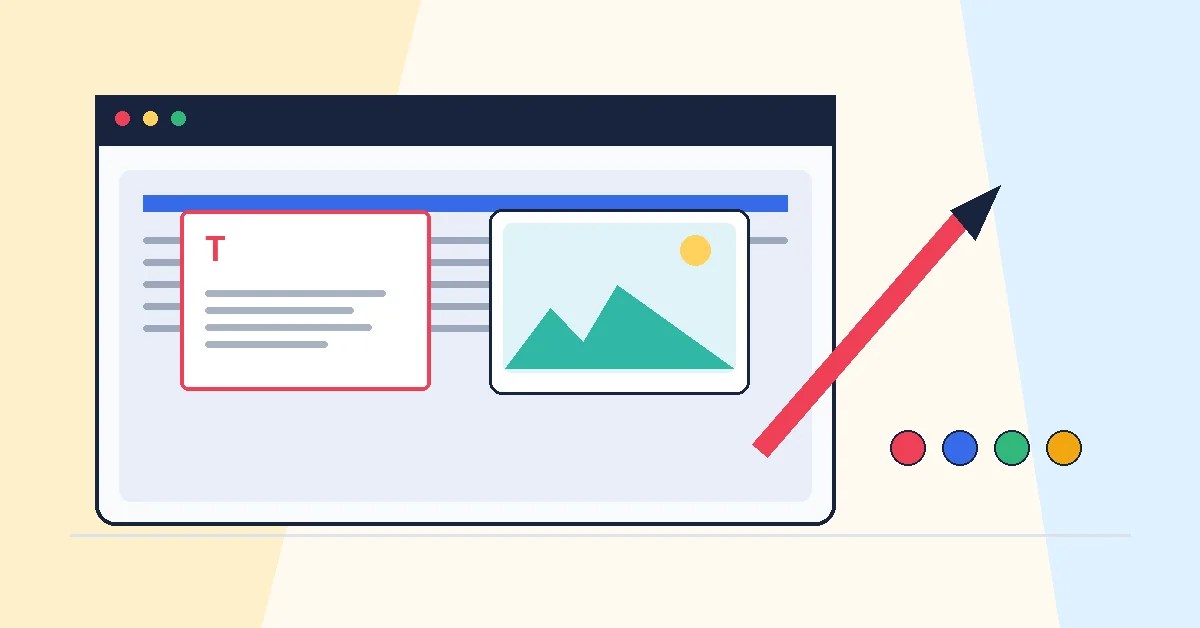
Edit PDF adds a layer on top of each page so you can type, drop images, draw shapes, and annotate. Upload the file, pick a tool, click where you want content, and download when finished. Undo and redo work normally, so experimenting is safe.
This is overlay editing, not rewriting the document's core text. Perfect for dates, checkmarks, initials, short notes, and logos on a form. For rewriting whole paragraphs or fixing tables, convert with PDF to Word, edit in Word, then export with Word to PDF.
Processing stays in your browser. Contracts, internal memos, and personal forms never leave your device during editing. When you download, your additions are baked into the PDF permanently.
Pair with Sign PDF when you need a handwritten-style signature instead of typed text on a line.
A practical workflow for Edit PDF
This workflow starts with a PDF that needs text, highlights, notes, or shapes and produces an edited PDF. The setting that deserves the most attention is simple: add annotations, text boxes, drawings, or highlights where needed.
- 1.Add a PDF that needs text, highlights, notes, or shapes.
- 2.Add annotations, text boxes, drawings, or highlights where needed.
- 3.Click Save PDF and let RashPDF prepare an edited PDF.
What to check before you download
- Input
- a PDF that needs text, highlights, notes, or shapes
- Expected output
- an edited PDF
- Important setting
- add annotations, text boxes, drawings, or highlights where needed
- Quality check
- Zoom in before placing small text or shapes so alignment looks clean after download. Your added edits are saved into a new PDF while the original content remains underneath.
- Processing note
- Edit PDF performs this document task in your browser and creates an edited PDF on your device.
After the result is checked, you can sign the edited PDF, protect it, or share it with a link. Keep the original file until the final version has opened correctly and is ready to print, submit, archive, or share.