Split a PDF Into Single Pages or Custom Ranges
Break a long PDF into smaller files for sharing, printing, or archiving.
A colleague asked for chapter three of an eighty-page handbook. Sending the entire PDF means they scroll through material they don't need and may see sections you did not intend to share. Splitting fixes both problems.
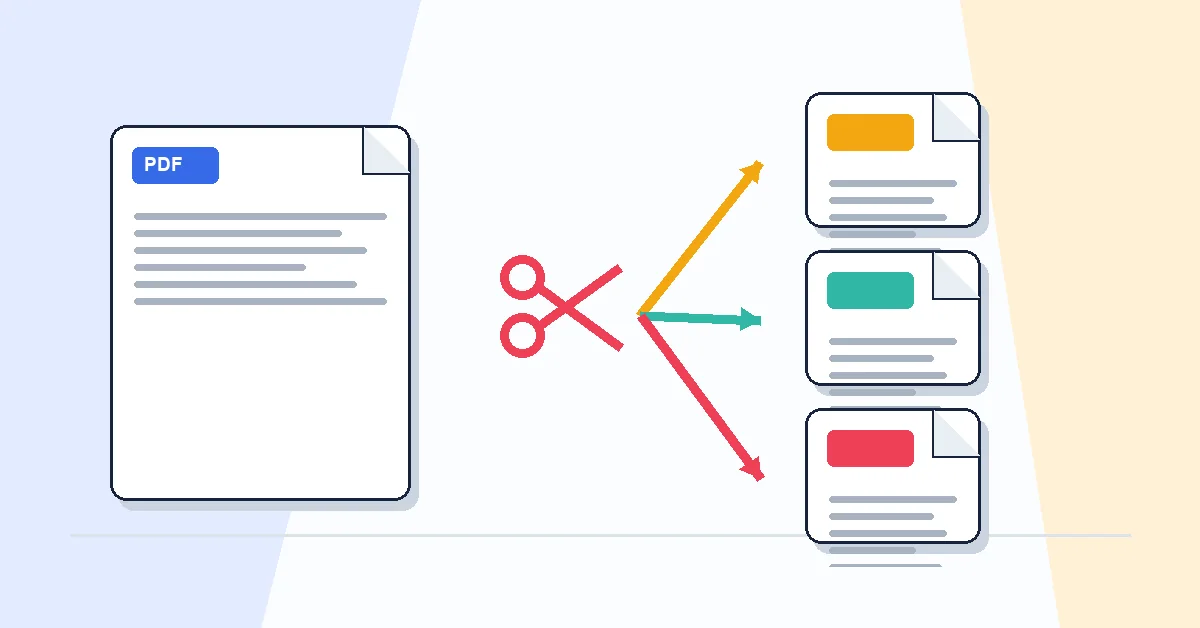
Split PDF breaks one PDF into smaller files. Upload the document, then choose a mode in the options panel. Pages mode splits every page into its own file, or only the pages you select. Range mode splits custom sections such as pages 1–10 and 11–25. Size mode splits so each output file stays under a KB or MB limit you set.
Output is a ZIP of real PDF files — not images. Text stays selectable, links work, and form fields remain intact because pages are copied from the source, not screenshot.
Split in your browser; nothing uploads to our servers for this tool. After splitting, you can Compress PDF individual chapters for email, or Merge PDF selected pieces from different documents into a custom compilation.
If you only need one or two specific pages rather than a structured split, Extract Pages is sometimes simpler. Split is better when you want every page separated or fixed ranges in one operation.
A practical workflow for Split PDF
This workflow starts with a PDF that needs to be separated by pages or ranges and produces separate PDF files or a ZIP archive. The setting that deserves the most attention is simple: choose page ranges, single pages, or the split method that matches your task.
- 1.Add a PDF that needs to be separated by pages or ranges.
- 2.Choose page ranges, single pages, or the split method that matches your task.
- 3.Click Split PDF and let RashPDF prepare separate PDF files or a ZIP archive.
What to check before you download
- Input
- a PDF that needs to be separated by pages or ranges
- Expected output
- separate PDF files or a ZIP archive
- Important setting
- choose page ranges, single pages, or the split method that matches your task
- Quality check
- Write page ranges carefully, such as 1-3 or 5,7,9, and preview the document first when page numbers are important. Splitting separates pages without rebuilding their content, so visual quality should stay the same.
- Processing note
- Split PDF performs this document task in your browser and creates separate PDF files or a ZIP archive on your device.
After the result is checked, you can merge selected pages again, compress each output, or protect private sections. Keep the original file until the final version has opened correctly and is ready to print, submit, archive, or share.