Merge PDF Files Into One Document the Easy Way
Combine multiple PDFs into a single tidy file with the right page order.
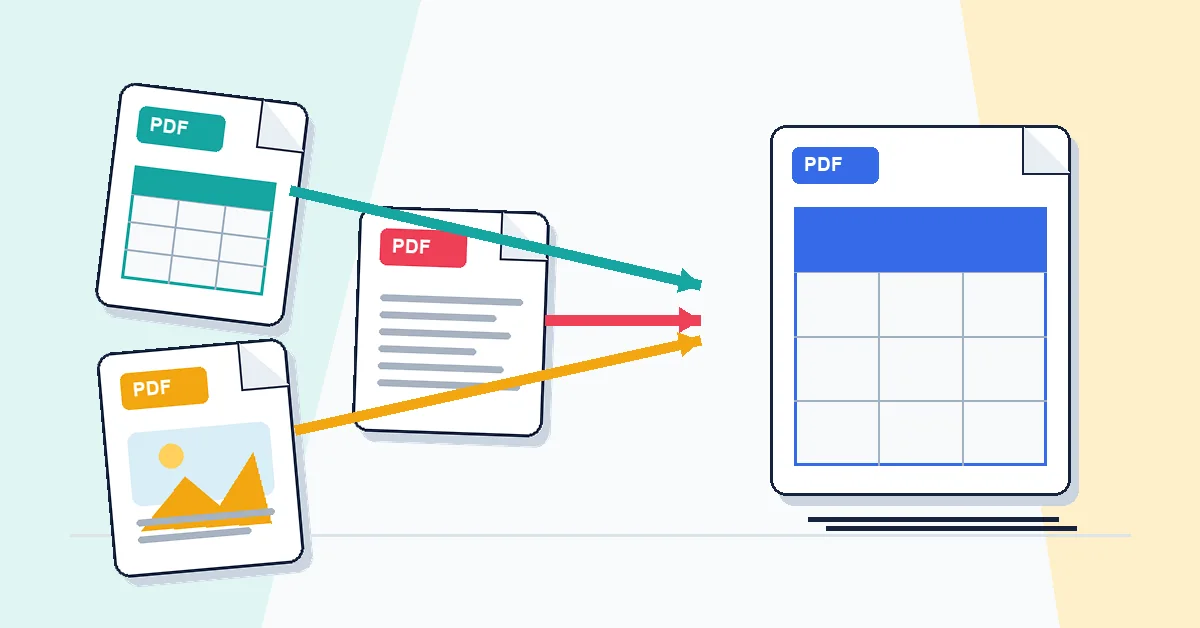
Sending six PDF attachments for one job application feels scattered. One merged file with cover letter, CV, and certificates in the right order feels deliberate. Clients notice the difference even if they never say so.
Merge PDF combines multiple PDF files into a single download. Open the tool, click Choose PDF Files or drag documents into the upload box, then reorder the file cards with the side drag handle. When the sequence looks right, click Merge PDF and download. The whole job runs in your browser with pdf-lib — RashPDF doesn't upload your files to merge them.
Important detail: you reorder whole files here, not individual pages inside one PDF. If page 3 of your report should come before page 1, open Organize PDF or Remove Pages on that file first, then merge the cleaned copies.
Merged output keeps fonts, hyperlinks, and form fields from each source file. Quality doesn't drop unless you choose to compress afterward. For email, a merged bundle of scans can still be large — run Compress PDF once at the end if size matters.
Common uses: job applications, combining signed pages with the main contract, bundling monthly invoices, joining chapters of a manual. Picture the reader opening the file for the first time. Cover first, context second, detail third, appendices last.
A practical workflow for Merge PDF
This workflow starts with two or more PDF files and produces one combined PDF file. The setting that deserves the most attention is simple: drag the files into the order you want before merging.
- 1.Add two or more PDF files.
- 2.Drag the files into the order you want before merging.
- 3.Click Merge PDF and let RashPDF prepare one combined PDF file.
What to check before you download
- Input
- two or more PDF files
- Expected output
- one combined PDF file
- Important setting
- drag the files into the order you want before merging
- Quality check
- Check the order of cover pages, attachments, and appendices before clicking merge. Merging does not normally change text, images, or page layout because each page is carried into the final PDF.
- Processing note
- Merge PDF performs this document task in your browser and creates one combined PDF file on your device.
After the result is checked, you can compress the merged PDF, add page numbers, protect it with a password, or share it with a link. Keep the original file until the final version has opened correctly and is ready to print, submit, archive, or share.