Save HTML and Web Pages as PDF
Turn online pages, invoices, receipts, and HTML files into printable PDF documents.
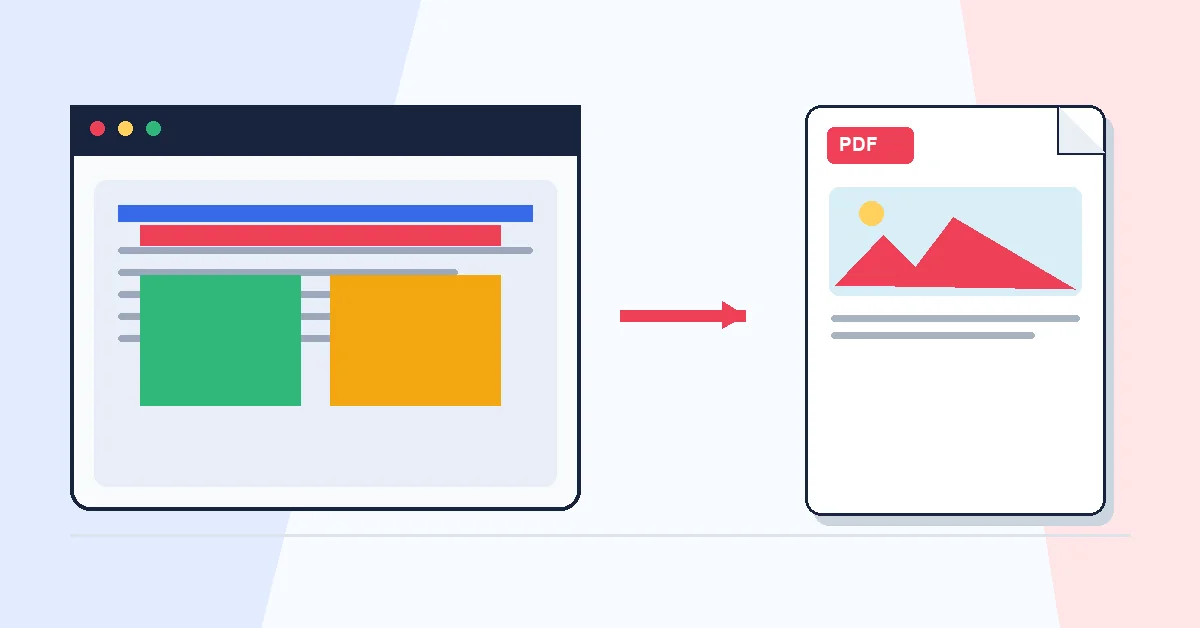
Web pages change without warning. A receipt URL expires after checkout. A policy page updates overnight. A job listing disappears when the role is filled. Saving the page as PDF at the moment it matters creates a stable record.
HTML to PDF offers three inputs: paste a public URL, paste raw HTML, or upload an HTML file. Our server renders the content to a multi-page PDF you can archive, print, or attach.
Close cookie banners, chat widgets, and pop-ups before converting URL pages — whatever is visible on screen appears in the output. Reader mode in your browser sometimes produces cleaner PDFs than a cluttered full page.
Teams use this for online receipts, quote snapshots, internal HTML reports, and documentation that clients need without logging into a dashboard.
A practical workflow for HTML to PDF
This workflow starts with a public webpage URL or HTML content and produces a PDF capture of the webpage. The setting that deserves the most attention is simple: enter the full URL and choose any available capture options.
- 1.Add a public webpage URL or HTML content.
- 2.Enter the full URL and choose any available capture options.
- 3.Click Convert to PDF and let RashPDF prepare a PDF capture of the webpage.
What to check before you download
- Input
- a public webpage URL or HTML content
- Expected output
- a PDF capture of the webpage
- Important setting
- enter the full URL and choose any available capture options
- Quality check
- Use a public URL that does not require login, paywall access, or private session cookies. The PDF captures the page as rendered by the conversion service; dynamic or login-only content may not appear.
- Processing note
- HTML to PDF sends a public webpage URL or HTML content to the RashPDF conversion service because this task needs server-side processing. The service returns a PDF capture of the webpage to your browser.
After the result is checked, you can highlight the saved PDF, merge multiple pages, or add page numbers. Keep the original file until the final version has opened correctly and is ready to print, submit, archive, or share.