Extract Pages From a PDF as Separate Files
Pull selected pages out of a PDF and save them as standalone documents.
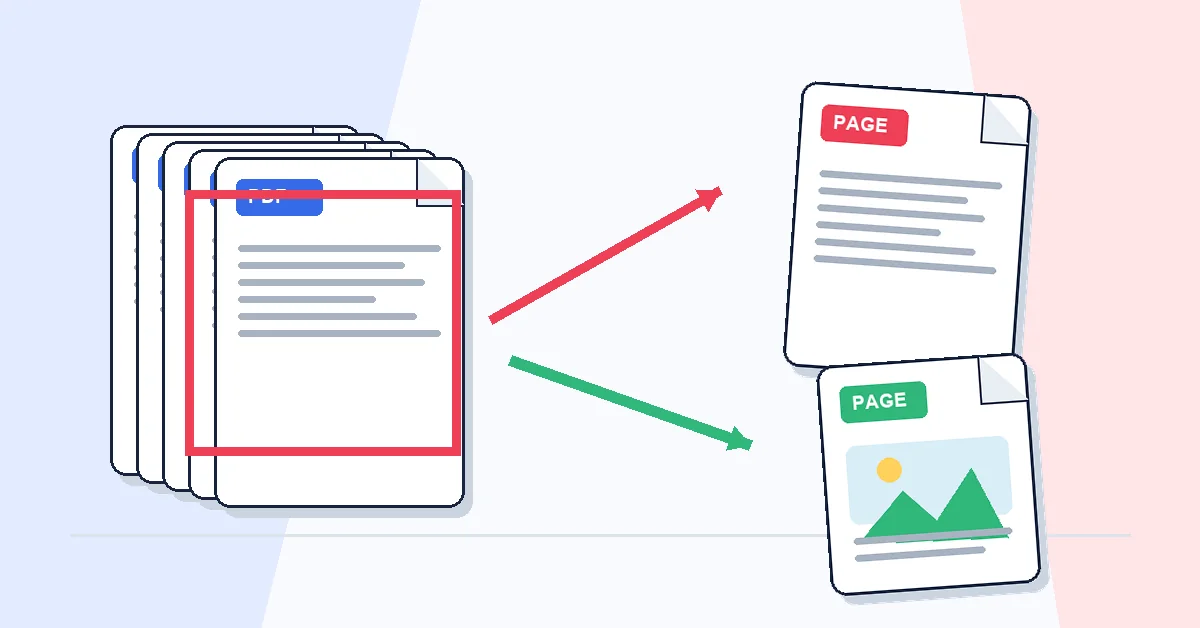
You have a forty-page contract but only need to return the signed page. Or a colleague needs one chapter from a manual, not the whole book. Extracting is cleaner than sending everything and hoping they find the right page.
Extract Pages saves selected pages as individual PDF files inside a ZIP. Upload, click the pages you want in the thumbnail grid, click extract, download. Each page keeps full quality — selectable text, working links, intact form fields.
Runs locally in your browser. The original file on your computer stays unchanged if you picked the wrong page — just upload again.
Common follow-ups: Merge PDF to combine extracted pages from different sources, Compress PDF on a single heavy chapter, or Sign PDF on one page before returning only that file.
A practical workflow for Extract Pages
This workflow starts with a PDF that contains pages you want to save separately and produces a new PDF containing only the selected pages. The setting that deserves the most attention is simple: enter individual page numbers or ranges such as 2-5.
- 1.Add a PDF that contains pages you want to save separately.
- 2.Enter individual page numbers or ranges such as 2-5.
- 3.Click Extract Pages and let RashPDF prepare a new PDF containing only the selected pages.
What to check before you download
- Input
- a PDF that contains pages you want to save separately
- Expected output
- a new PDF containing only the selected pages
- Important setting
- enter individual page numbers or ranges such as 2-5
- Quality check
- Confirm whether the PDF viewer page number and the printed page number are the same before entering ranges. Extracted pages keep the same visual content, fonts, images, and layout from the source PDF.
- Processing note
- Extract Pages performs this document task in your browser and creates a new PDF containing only the selected pages on your device.
After the result is checked, you can merge extracted pages with another file, compress the output, or add a watermark. Keep the original file until the final version has opened correctly and is ready to print, submit, archive, or share.