Convert PDF to Word and Keep the Layout Intact
Turn a PDF into an editable Word document while preserving tables and formatting.
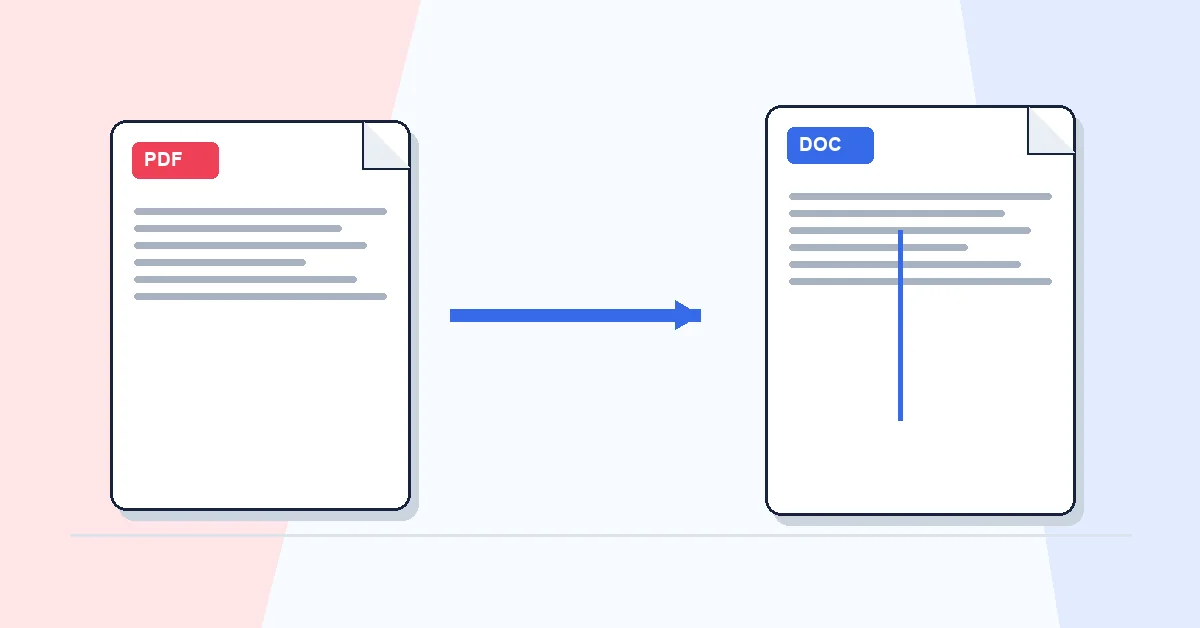
Someone sends a report as PDF and you need to change three paragraphs before tomorrow. Retyping the whole document isn't realistic. Converting to Word is the practical path.
PDF to Word produces an editable DOCX file. Upload your PDF, click Convert to Word, wait for the progress bar, and download. RashPDF sends the file to our conversion server for the best layout reconstruction. If the server is unavailable, a simpler browser fallback may run for a single file.
Digital PDFs — exported from Word, Google Docs, or accounting software — convert cleanest. Headings, lists, and simple tables usually transfer well. Scanned PDFs are pictures; run OCR PDF first so there is text to extract.
After conversion, fonts may substitute if your machine lacks the original typeface. Skim line breaks and spacing before heavy editing. When you're done, lock layout for sharing with Word to PDF.
A practical workflow for PDF to Word
This workflow starts with a PDF you want to edit as a Word document and produces an editable DOCX file. The setting that deserves the most attention is simple: upload the PDF and choose the conversion mode when options are available.
- 1.Add a PDF you want to edit as a Word document.
- 2.Upload the PDF and choose the conversion mode when options are available.
- 3.Click Convert to Word and let RashPDF prepare an editable DOCX file.
What to check before you download
- Input
- a PDF you want to edit as a Word document
- Expected output
- an editable DOCX file
- Important setting
- upload the PDF and choose the conversion mode when options are available
- Quality check
- Use text-based PDFs for the cleanest output; scanned PDFs may need OCR or visual conversion. Simple text layouts convert best; complex tables, columns, and scans can require manual cleanup in Word.
- Processing note
- PDF to Word sends a PDF you want to edit as a Word document to the RashPDF conversion service because this task needs server-side processing. The service returns an editable DOCX file to your browser.
After the result is checked, you can convert the edited Word file back to PDF, compress the PDF, or sign it. Keep the original file until the final version has opened correctly and is ready to print, submit, archive, or share.