Convert JPG Images Into a Single PDF Document
Turn photos and scans into one clean PDF ready for printing or sharing.
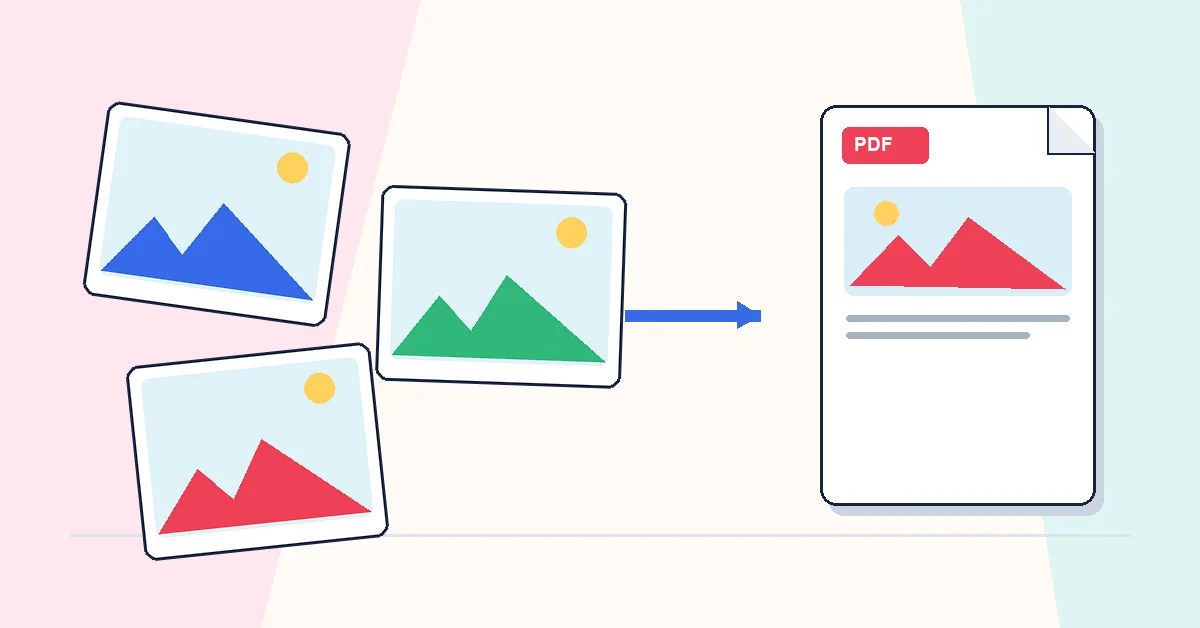
Eight JPG attachments look like a pile of photos. One PDF looks like a finished document. Receipts, ID scans, homework photos, and property inspection images all benefit from being one file instead of many.
JPG to PDF converts images into a multi-page PDF in your browser. Upload JPG or PNG files, drag thumbnails into the order you want, click convert, and download. Each image becomes one page at its natural aspect ratio — nothing stretched or cropped without you asking for it.
The tool doesn't fix exposure or blur. Check photos in your gallery app before upload if quality matters. Sideways shots stay sideways unless you rotate them elsewhere first.
Phone camera files are often three to five megabytes each. Ten pages can produce a PDF that email rejects. After converting, run Compress PDF if you need a lighter attachment. For the reverse trip — PDF back to images — use PDF to JPG.
Works locally in the browser. Good for personal records, school submissions, and sharing scan bundles with clients who expect a single attachment.
A practical workflow for JPG to PDF
This workflow starts with JPG or JPEG photos and produces a PDF with each image placed on a page. The setting that deserves the most attention is simple: choose page size, orientation, margins, and image order.
- 1.Add JPG or JPEG photos.
- 2.Choose page size, orientation, margins, and image order.
- 3.Click Convert to PDF and let RashPDF prepare a PDF with each image placed on a page.
What to check before you download
- Input
- JPG or JPEG photos
- Expected output
- a PDF with each image placed on a page
- Important setting
- choose page size, orientation, margins, and image order
- Quality check
- Use sharp images and arrange them in the exact reading order before conversion. Images are placed into the PDF at usable quality; the final size depends on image resolution.
- Processing note
- JPG to PDF performs this document task in your browser and creates a PDF with each image placed on a page on your device.
After the result is checked, you can compress the image PDF, merge it with other files, or add a watermark. Keep the original file until the final version has opened correctly and is ready to print, submit, archive, or share.