Run OCR on a PDF to Make Scans Searchable
Turn images of text into selectable, searchable, and copyable content.
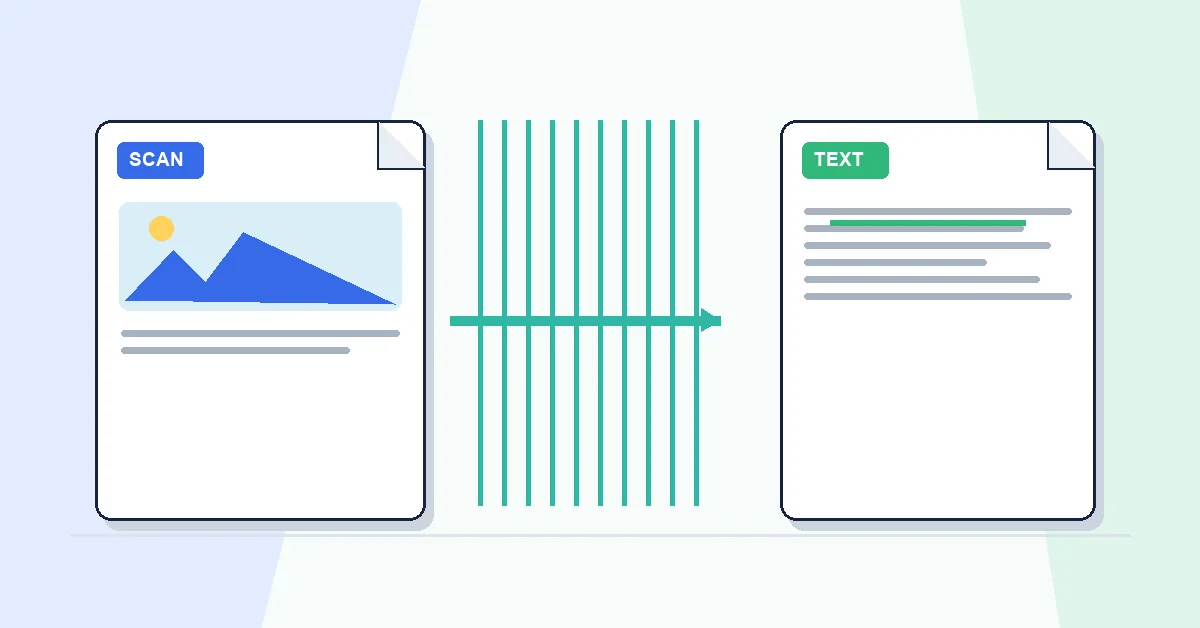
You try Ctrl+F on a scanned contract and find nothing. The file looks like text but is actually a series of page images. Copying a sentence is impossible without retyping it.
OCR — optical character recognition — reads those images and adds a hidden searchable text layer. OCR PDF on RashPDF uploads your scan to our server, lets you pick languages and processing mode, then returns a searchable PDF or exports to Word or Excel.
Bright, straight, high-resolution scans produce the fewest errors. Dark, tilted, or low-DPI pages misread more often. Fix orientation with Rotate PDF before OCR when you can.
After OCR the page looks the same visually, but you can search, copy, and convert with PDF to Word. For archiving folders of invoices or medical records, OCR turns a dead image pile into something you can actually query.
A practical workflow for OCR PDF
This workflow starts with a scanned or image-based PDF and produces a searchable PDF with selectable text. The setting that deserves the most attention is simple: select the document language before starting OCR.
- 1.Add a scanned or image-based PDF.
- 2.Select the document language before starting OCR.
- 3.Click Run OCR and let RashPDF prepare a searchable PDF with selectable text.
What to check before you download
- Input
- a scanned or image-based PDF
- Expected output
- a searchable PDF with selectable text
- Important setting
- select the document language before starting OCR
- Quality check
- Choose the correct language and use clear scans with straight, high-contrast text. The PDF should look the same visually; OCR adds a text layer and accuracy depends on scan clarity.
- Processing note
- OCR PDF sends a scanned or image-based PDF to the RashPDF conversion service because this task needs server-side processing. The service returns a searchable PDF with selectable text to your browser.
After the result is checked, you can convert the searchable PDF to Word, compress it, or merge it with other records. Keep the original file until the final version has opened correctly and is ready to print, submit, archive, or share.