How to Compress PDF Files Without Losing Quality
Reduce PDF size easily for email and uploads while keeping text and images sharp.
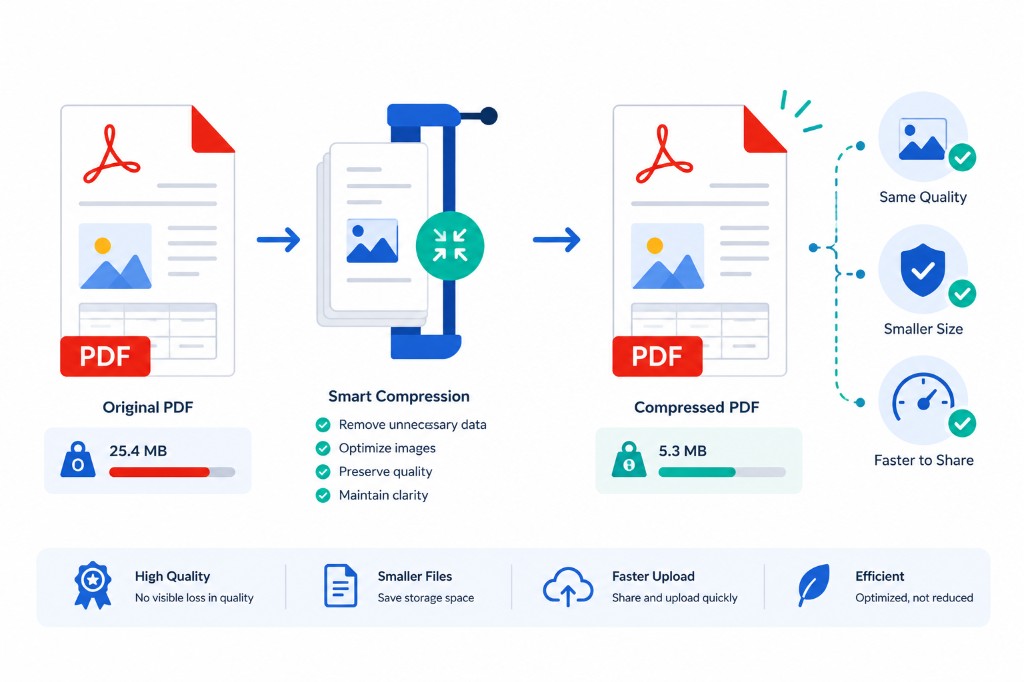
My email client rejected a 14 MB contract last month. The file was fine — the inbox limit was not. That's when most people discover they need to compress a PDF. Scanned documents, photo-heavy reports, and multi-page forms often land between 8 and 25 MB, which is awkward for Gmail, Outlook, and many government upload portals.
Compress PDF on RashPDF shrinks file size by rebuilding the document with compressed page images while keeping the layout intact. You upload the file, wait for thumbnails to appear, and the tool produces two versions in your browser: Recommended (balanced size and clarity) and Extreme (smallest file, softer photos). You compare both on screen and download the one that works for your situation. No account, no watermark.
Under the hood, each page is rendered and saved as JPEG inside a new PDF. Text-heavy files shrink modestly because the words were already small. Scanned pages shrink dramatically because the images were the bulk of the file. That's normal — it isn't a bug.
Pick Recommended for contracts, invoices, and anything with small text someone will print. Pick Extreme when you just need the file under an attachment cap and some image softness is acceptable. If neither version is small enough, you probably need fewer pages, not more compression. Try Remove Pages or Extract Pages first, then compress the trimmed file.
Always compress last in your workflow. If you compress first and then merge, rotate, or add page numbers, you may need to compress again anyway. One pass at the end is enough for most jobs.