Split a PDF Into Single Pages or Custom Ranges
Break a long PDF into smaller files for sharing, printing, or archiving.
A colleague asked for chapter three of an eighty-page handbook. Sending the entire PDF means they scroll through material they don't need and may see sections you did not intend to share. Splitting fixes both problems.
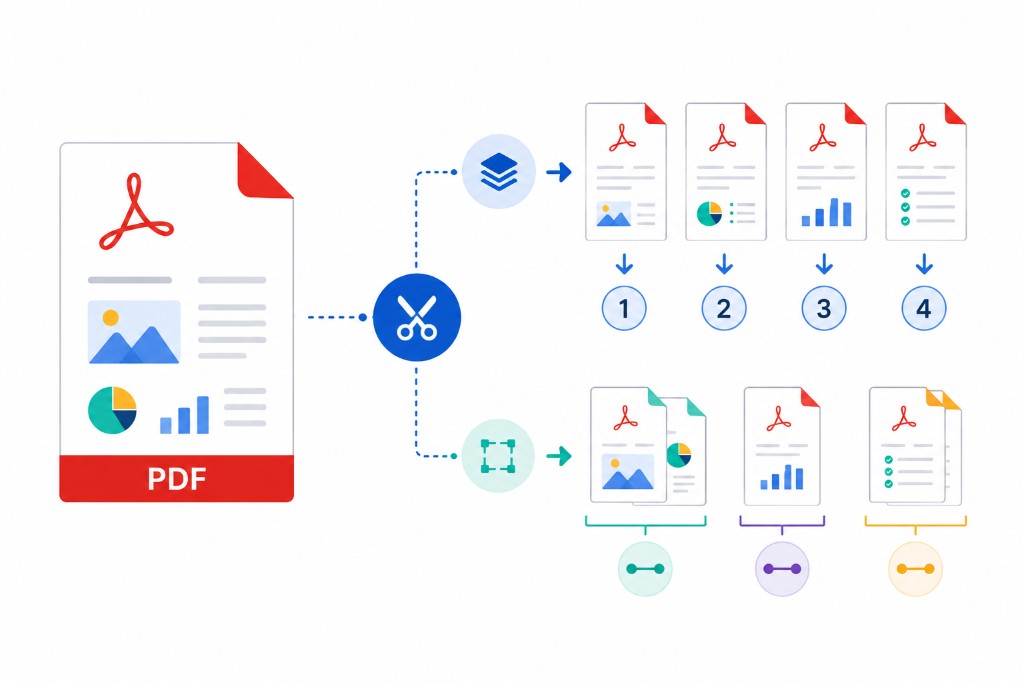
Split PDF breaks one PDF into smaller files. Upload the document, then choose a mode in the options panel. Pages mode splits every page into its own file, or only the pages you select. Range mode splits custom sections such as pages 1–10 and 11–25. Size mode splits so each output file stays under a KB or MB limit you set.
Output is a ZIP of real PDF files — not images. Text stays selectable, links work, and form fields remain intact because pages are copied from the source, not screenshot.
Split in your browser; nothing uploads to our servers for this tool. After splitting, you can Compress PDF individual chapters for email, or Merge PDF selected pieces from different documents into a custom compilation.
If you only need one or two specific pages rather than a structured split, Extract Pages is sometimes simpler. Split is better when you want every page separated or fixed ranges in one operation.